Drag and Drop Mac Access with sshFS
Your rsync.net filesystem can be accessed in the Finder, under the Devices list, just like any other drive, allowing you to drag and drop files.
This requires installing "FUSE for OSX" - a free tool, which is the successor to the old "MacFUSE" project.
Installing FUSE for OSX
Start by downloading the latest .dmg file for "FUSE for OSX" here.
The latest version is the first one in the list.
Open the .dmg file and click the "Install OSXFUSE" icon:
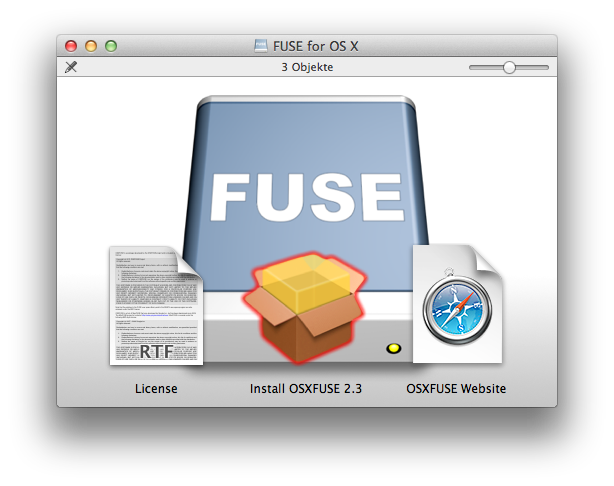
You should choose the defaults that the installer presents (DO install the OSXFUSE Preference Pane, and you can SKIP the MacFUSE compatibility layer).
Installing sshFS
The second piece of software to install is sshFS. Download the latest .dmg file here.
The latest version is the first one in the list.
Download and run the .pkg installer - there are no options during installation.
Mounting Your rsync.net Filesystem
Open a terminal window and run:
# mkdir /Volumes/sshfs

# /usr/local/bin/sshfs 1005@usw-s004.rsync.net: /Volumes/sshfs -oauto_cache,reconnect,local,volname=rsync.net,allow_other,defer_permissions,noappledouble
Note: it is normal, the first time you connect, to see a warning like this:
The authenticity of host 'usw-s004.rsync.net (69.43.165.5)' can't be established.
DSA key fingerprint is dd:b3:40:df:47:c8:69:63:15:7a:80:c7:24:1c:7d:af.
Are you sure you want to continue connecting (yes/no)?
type "yes", then hit enter, and then enter your password when you are prompted.
You will now see a new entry, under Devices, in your Finder window. This drive is your rsync.net filesystem, and you can browse it, and drag and drop, just like any other device.
Additional Notes
If you run the sshfs command as root, other users of the system will also see the mounted drive listed in "Devices". If you do not want other (non root) users to see it, simply remove the "allow_other" argument from the sshfs command.
If you want to mount your rsync.net filesystem, over sshfs, at system startup, we recommend that you first set up SSH key based authentication, so that the mount happens automatically, without prompting you for a password. The instructions for this are here.
For more documentation on FUSE for OSX and sshfs, please visit this link.
Support
If you have any problems with this process, do not hesitate to email support@rsync.net - we will help you immediately, and have you up and running that same day.